
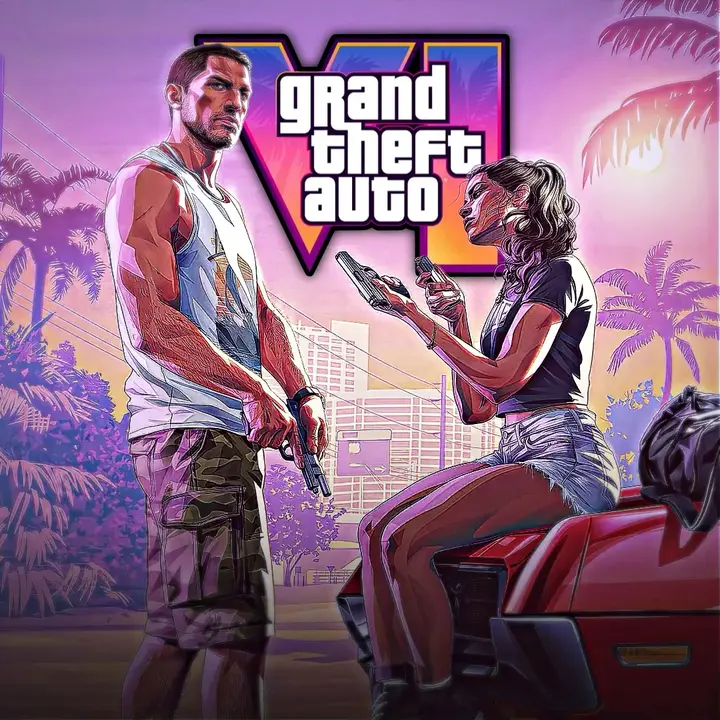
GTA VI Scene Pack | Launch Trailer Scene Pack
Be sure to subscribe and follow my social media accounts

Introduction
Finding crisp, artifact-free footage for high-energy gaming edits is a constant headache. Platform compression, watermark stamps, and bitrate drops often ruin the glossy visual spectacle of a massive gaming release.
The GTA VI Scene Pack (Launch Trailer) provides editors with the ultimate collection of pristine clips from Rockstar Games’ ground-breaking launch showcase in Vice City.
Whether you produce fast-paced phonk edits on TikTok, atmospheric neon reels on Instagram, or cinematic story montages on YouTube, this pack delivers the hottest moments without any visual clutter. From sunset boulevard cruises and lowrider bounce scenes to high-stakes convenience store robberies, dynamic police pursuits, and character close-ups of Lucia and Jason, every clip is cut to give you maximum editing flexibility.
Curated specifically for video editors and gaming creators, this pack lets you jump straight into syncing beats, building velocity curves, and color grading without wasting hours capturing and cleaning trailer footage.
What’s Included in This Pack
We went through the entire GTA VI launch trailer and extracted the sharpest, most aesthetic moments, organizing them into dedicated folders for every editing pipeline.
Pack Contents
- 20+ GTA VI Clips
- High‑quality. Movie‑style moments
- Many clip variations for editing styles
- Good for short and long videos
- Clean footage with no distracting overlays
Included Versions
- Normal Clip Version
- Quality: 1080p
- Original quality footage
- File Size: 236 MB
- Topaz Clip Version
- Quality : 2K
- Enhanced with Topaz Video AI
- Sharpness and detail
- File Size: 236 MB
- CC Clip Version
- Quality : 2K
- Color‑corrected footage
- Ready for editing projects
- File Size: 237 MB
Technical Details
- Game: Grand Theft Auto VI
- Clips: Launch Trailer
- Total Scenes: 20+
- Resolution: 1080p + 2K
- Duration: 02:05 Minutes
- Formats Included: Normal, Topaz, and CC Versions
The pack gives editors freedom when making videos. Those who want control can use the Normal clips while editors who need sharper visuals can use the Topaz version. The CC version saves time by giving clips that already look polished.
Key Features
Why Use This Scene Pack?
- High-Quality Clips
- Footage available in 1080p + 2K resolution.
- Multiple Versions Included
- Choose between Normal, Topaz and CC clips.
- Topaz Enhanced Footage
- detail and clarity for cleaner edits.
- Color Corrected Clips
- CC version provides an improved look.
- Editing Friendly
- Easy to use in After Effects, Premiere Pro, DaVinci Resolve and other software.
- Perfect for Gaming Edits
- Designed for character edits, cinematic projects and social media content.
- No Watermark
- footage for a professional editing workflow.
- Organized Content
- Clips are arranged for access and faster editing.
These features make the pack useful, for both beginners and experienced editors.
How to Use This Scene Pack
Using the GTA VI Scene Pack I Launch Trailer Scene Pack is easy. Follow the steps to begin your edit.
1. Download the Pack
Download the version you want. You can pick the Normal, Topaz or CC version based on your editing needs.
2. Import Into Your Editing Software
Open your editing software such as:
- Adobe After Effects
- Adobe Premiere Pro
- DaVinci Resolve
- Sony Vegas Pro
- CapCut
Start a new project and bring in the downloaded clip.
3: Add Clips to the Timeline
Take the Scene Pack from your media library. Drag them onto the timeline. Position them in the order that matches your story or the style you want.
4: Cut the Scenes You Need
Remove any parts you don’t need. Keep the best moments to keep your edit fast and exciting.
5: Add Effects and Transitions
Use effects, like:
- Motion blur
- Zoom effects
- Glow effects
- Flash transitions
- Camera shakes
You can also time your scene changes to match music beats for a more dynamic edit.
6: Export Your Final Edit
Once your project is done export the video with high-quality settings.
Recommended export settings:
- Resolution: 2K
- Format: MP4 (H.264)
- Frame Rate: Match the source footage
- Bitrate: High Quality
Your edit will be ready to share on YouTube, TikTok, Instagram or any other platform.
Tips for Best Results
- For the outcome from this scene pack remember these tips.
- Export your project at a bitrate to keep video quality and sharp details.
- Make sure your project frame rate matches the source footage. Mixing rates can cause stuttering.
- Many visual effects can clutter an edit. Stick to clean transitions and smooth motion.
- Topaz clips perform better when used in slow‑motion sequences.
- Organize clips before editing. This saves time. Improves workflow especially on longer projects.
- Follow these tips to create smoother and more professional Resident Evil edits.