
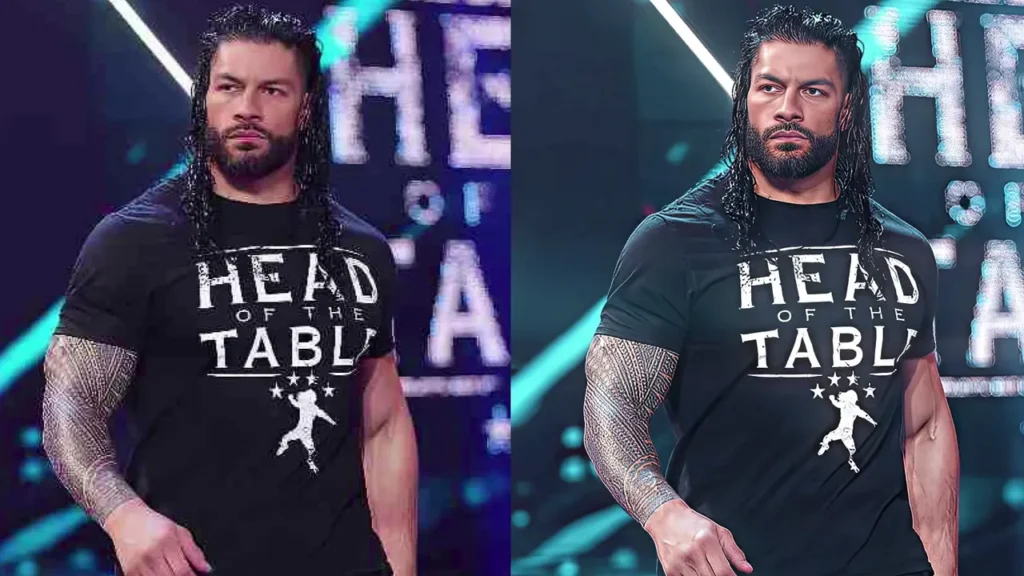
Even when you are dealing with low-quality footage, it is not always sufficient simply to add effects in After Effects; if the original clip is blurry, compressed, or of low resolution, the final edit can still appear soft even after carrying out color correction and other effects.
A workflow which suits me is to start off by enhancing the footage using Topaz Video AI v3.1.10 and then import it into Adobe After Effects for sharpening and the other editing tasks.
In this article I am going to describe the workflow that I use in order to improve the quality of videos, beginning with the original 720p footage and ending with the final edited version.
Starting With the Raw Footage
My first action is to look at the original footage before carrying out any enhancement.
In this case the source footage is 720p. At this resolution certain details may appear blurred, in particular when the clip is viewed on a large screen or is used in an edit which calls for a higher output resolution. The original footage should be retained since it provides a basis for comparison once the enhancement has been carried out.
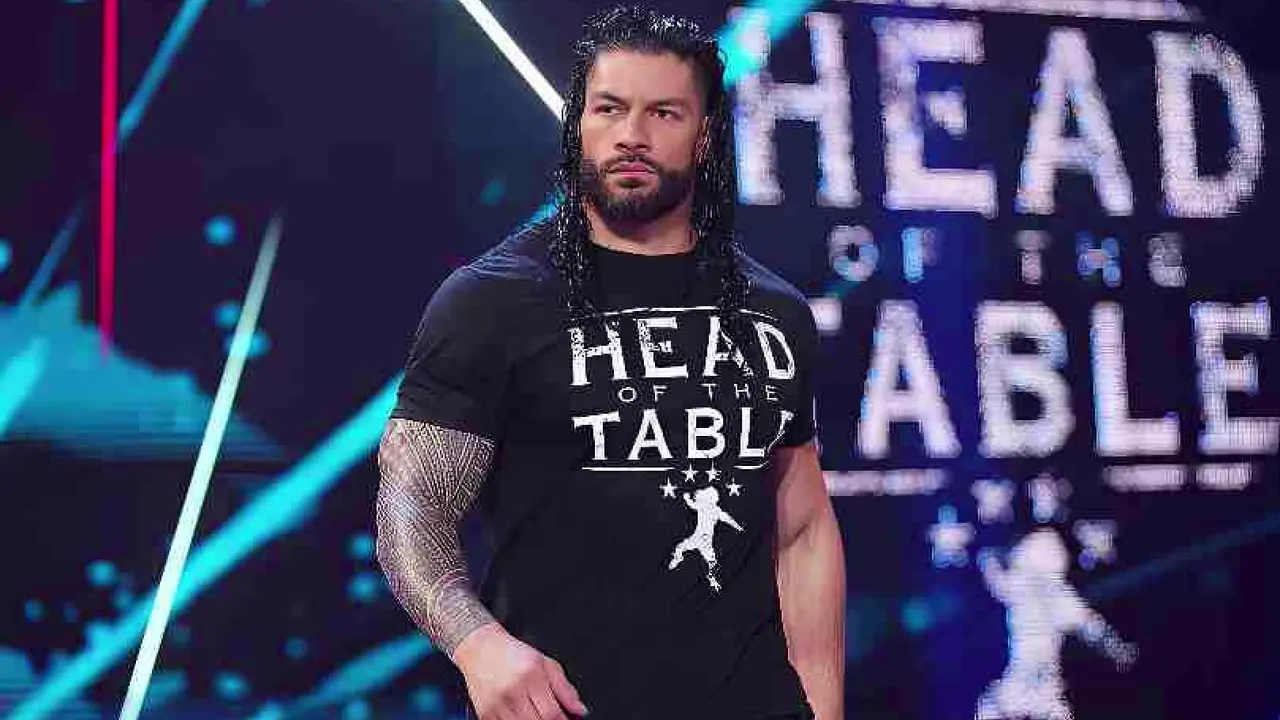
Footage originally recorded at 720p before it was enhanced.
Before I begin to process the clip I generally check things like the face, the hair, the clothing, the edges, and the background details since it is easier to judge whether or not the enhancement is actually improving the footage.
Enhancing 720p Footage in Topaz Video AI
I check the raw footage and then proceed to Topaz Video AI v3.1.10.
I mainly resort to Topaz Video AI when I need to enhance the quality of the footage before importing it into After Effects; one useful feature of it is the ability to upscale the original footage to a higher resolution.
Depending on the project, I can upscale 720p footage to:
- 1080p
- 2K
- 4K
The resolution of the output will be based on my requirements for that specific edit.
Why I Enhance the Footage Before After Effects
What I do is to improve the footage before carrying out the main editing and colour correction since I want to begin my After Effects project with a cleaner source.
If the original film has already been made soft or compressed, then applying color correction and sharpening to it directly might not yield the result I desire.
If I first improve it, I can then carry out the finishing work using After Effects.
Choosing the Right Topaz Settings
The settings you need to use will vary according to the footage you are working with, and there is no one setting that will produce the best result for every clip.
It would be a good idea to look at a short section before processing the whole video, as this makes it easier to determine whether the outcome appears natural or if the footage has been over-processed.
The aim is not just to get the video as sharp as possible; I would like the footage to appear cleaner without making the details seem unnatural.
You can already see the difference when the footage is processed using Topaz Video AI compared with the original 720p clip.
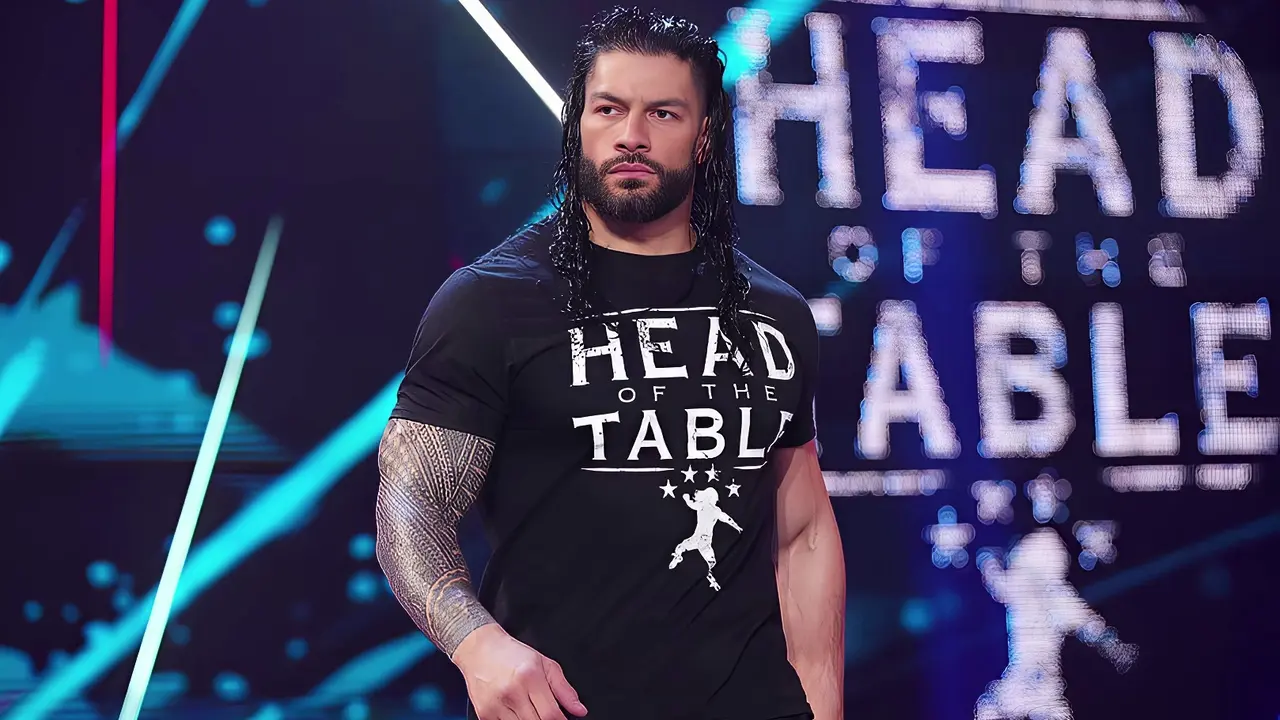
The 720p footage has been enhanced and upscaled using Topaz Video AI v3.1.10.
Bringing the Enhanced Footage Into After Effects
When the Topaz process is complete, I import the enhanced footage into Adobe After Effects.
It is here that I carry out the rest of my editing and work on the final look of the video.
Depending on the project, my After Effects workflow can include:
- Color adjustments
- Sharpening
- Looks
- Glow
- Final Adjustments
I likewise ensure that the composition settings correspond with the resolution required for the final video.
Applying CC Presets
After importing the improved footage, I then apply my CC Presets in After Effects.
Color correction and color grading can have a great effect on how the edited footage looks. Although the footage might have already been improved by Topaz, the appropriate color correction can still add more contrast, stronger colours, and a more refined appearance.
The precise CC settings will vary according to the footage and the effect I wish to achieve.
I never apply the same colour correction to all my videos since different types of footage will need different adjustments, and as a result I usually look at the final output and make any necessary changes.
Once the CC preset has been applied, the video begins to take on the final appearance that I desire.

Footage that has been enhanced using CC presets in Adobe After Effects.
Adding Sharpening With Sapphire S_Sharpen
I also use Sapphire’s S_Sharpen effect for additional sharpening after working on the colors.
Sharpening can help bring certain details into sharper focus, in particular when the original footage was soft.
Sharpening must be carried out with care.
If sharpening is taken too far, the image can begin to appear unnatural, with you possibly observing harsh edges, an excess of detail, or unwanted artifacts near the objects.
That is the reason why I opt to use sharpening as a final step rather than using it to correct completely low-quality footage.
Topaz is responsible for the primary enhancement and upscaling, and then S_Sharpen can be used to add a bit more definition to the final video.
My Video Quality Enhancement Workflow
My basic workflow looks like this:
720p raw footage is processed using Topaz Video AI v3.1.10 then converted to 1080p or 2K or 4K format, after which it is edited in After Effects using a CC preset, sharpened with the S_Sharpen option, and finally exported.
Each stage serves its own purpose.
Raw Footage:
The text I begin with is the original one.
Topaz Video AI:
I use it to improve and increase the resolution of the footage.
After Effects:
That is where I carry out the editing and put my creative effects.
CC Preset:
I apply CC presets in order to enhance the colors and achieve the desired visual style.
S_Sharpen:
I use Sapphire’s sharpening effect to give extra clarity when needed.
Final Export:
Once all the work is finished, I export the final video in accordance with the project’s resolution and requirements.
Before and After Comparison
The simplest way of understanding the difference is to compare the original film with the final product.
The footage in the Before section is the original 720p material, and that in the After section has been processed using the Topaz enhancement, After Effects CC, and sharpening workflow.
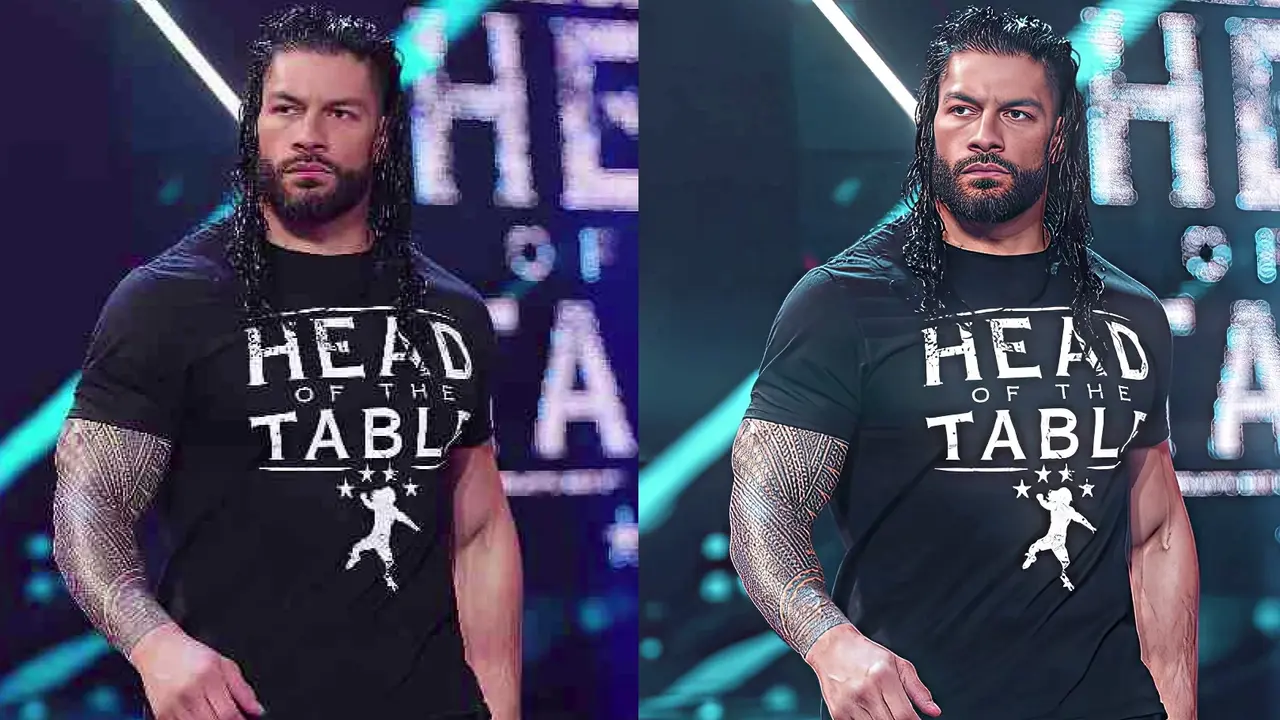
A comparison of the original film footage with the finally enhanced edit.
When comparing the two versions, I look at areas such as:
- Overall clarity
- Fine details
- Sharpness
- Colors
- Contrast
- Edges
- Compression
The result should be not only sharper but also appear clean, balanced, and natural.
Tips for Better Video Quality
Start With the Best Source You Have
Make it your aim to obtain the best possible version of your footage since a better source provides you with more information when you are enhancing it.
Don’t Overdo AI Enhancement
If the enhancement is increased too greatly, the footage may appear artificial. Try it on a small section first and carefully check the result.
Use Sharpening Carefully
Effects such as S_Sharpen may enhance definition, but excessive sharpening can lead to harsh edges and unwanted artifacts.
Choose the Right Output Resolution
It is not necessary to upscale every clip to 4K.
If the final project is to be 1080p then enhancing it to 1080p might be sufficient. For those projects which need a bigger output, either 2K or 4K could be considered according to the source footage.
Compare With the Original
Make sure that the unedited footage remains available so that you can compare the end result with the original starting point.
An effect might appear impressive by itself but can in fact deteriorate the footage when it is compared directly with the original.
Can footage in 720p be up-scaled to 4K?
Yes, it is possible to upscale a 720p video to 1080p, 2K, or 4K using Topaz Video AI.
That doesn’t mean that the original film now contains the same information as film which had been recorded native 4K.
The footage can be improved in appearance and have extra details estimated, but the quality of the original source remains important.
Because of that, I suggest that you test the footage at a number of different output resolutions and then select the one which looks best for your specific project.
Final Thoughts
It’s not only about boosting the resolution to improve video quality since the whole workflow is important.
In my editing process I begin with the 720p raw footage, then enhance and upscale it with Topaz Video AI v3.1.10 before importing the output into After Effects.
Following that, I use my CC presets to enhance the colors and the overall appearance. If further sharpness is required, I apply Sapphire S_Sharpen as the final effect.
The final workflow is simple:
RAW → TOPAZ → CC → FINAL
What’s most important is not to go overboard. Effective enhancement should make your video appear cleaner and more detailed without making it seem unnatural.
Looking for more video editing tips, CC preset guides, and quality enhancement tutorials? Explore our Blog for additional resources and workflows.